
Dear SmartCP Logistics users,
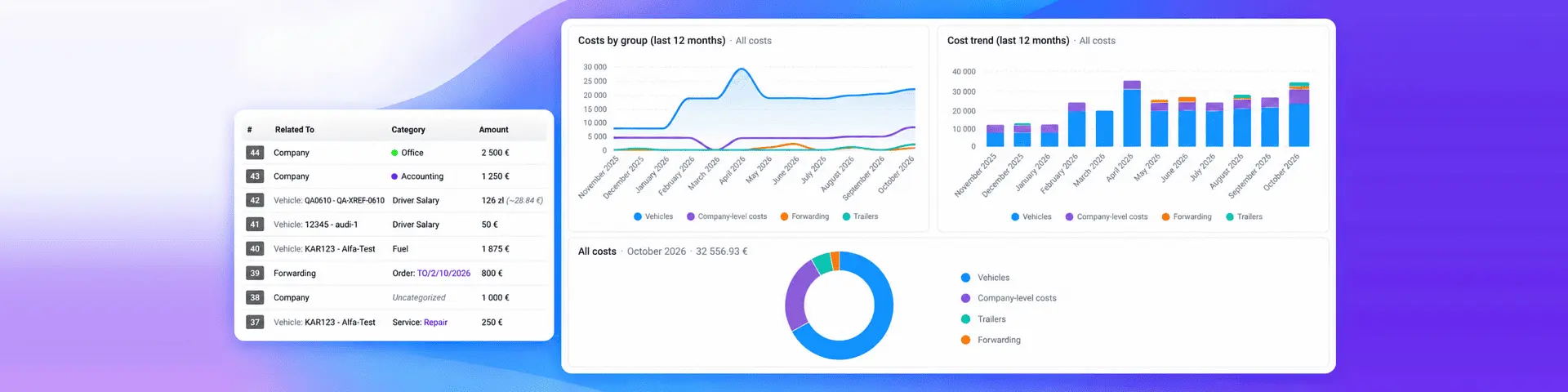
We’ve redesigned Costs to help you see where your company’s money goes and explore the details behind each total. Now part of Finances, it brings cost records, invoice connections, and statistics together, making it easier to organize costs and compare them across your business.
Your company’s costs in one place
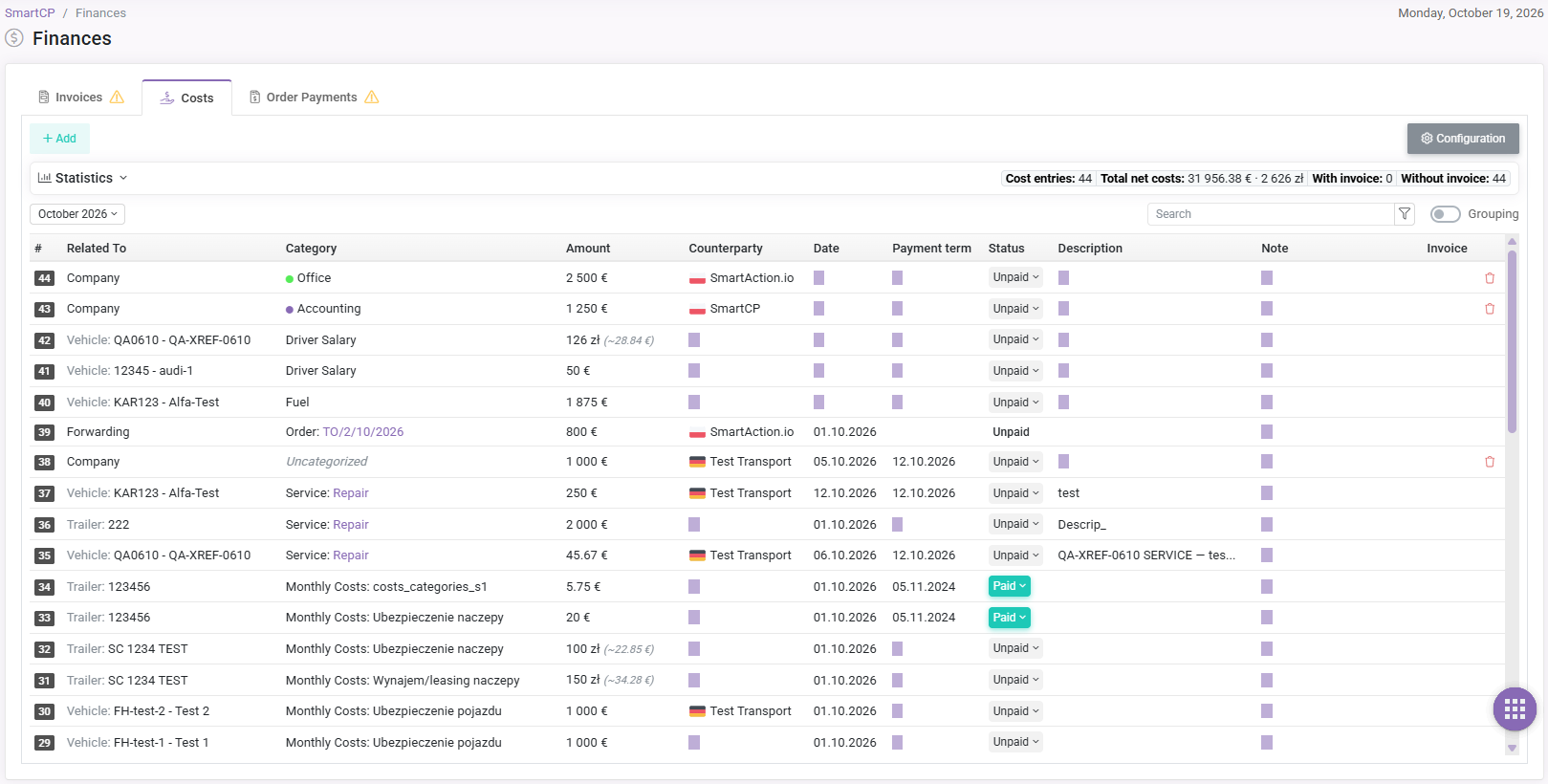
Open Finances and select the Costs tab. Here you can review manually entered costs alongside vehicle and trailer service costs, recurring costs such as leasing and insurance, payments to carriers for forwarding orders, and fuel, AdBlue, tolls, and driver salary amounts from Profitability.
This gives you a broader view of company costs while keeping individual details within reach. You can review a month, explore a longer period, or search for a specific entry without switching between separate operational records.
Organize costs in a way that works for your business
 |
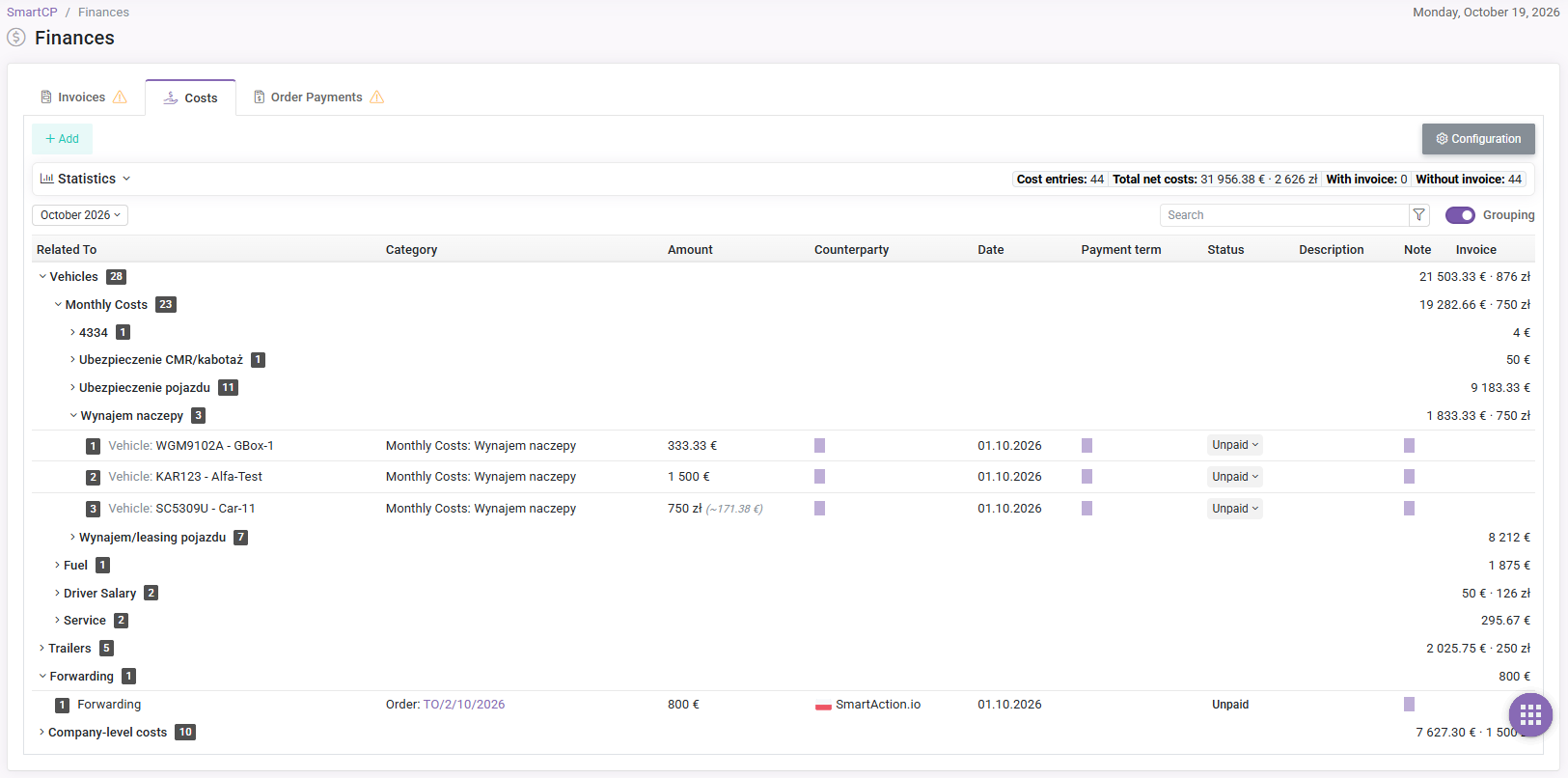 |
Assign costs to the company, a vehicle, or a trailer, and use custom categories to make them easier to understand. Categories such as office rent, accounting, or software subscriptions help distinguish different types of company costs, while vehicle and trailer assignments show which assets they relate to.
You can give categories their own colors for easier recognition. If a category is no longer needed, archive it while keeping past records available. Costs that you want to classify later can remain Uncategorized.
Descriptions, notes, counterparties, and payment details add context to each entry. Your team can see what a cost covers and update editable details directly in the list.
Keep costs connected to daily operations
Costs remain connected to the work behind them. Vehicle and trailer services, forwarding orders, and Profitability amounts contribute to the same financial view, helping you review their impact together.
You can also work with fuel, AdBlue, tolls, and driver salary amounts from Costs. Changes to these monthly amounts are reflected in Profitability, so you do not need to enter the same adjustment in both places.
For recurring company costs, Regular Costs lets you set the period during which they apply. This helps you include predictable costs in new months while preserving the entries already recorded.
See which costs have supporting invoices
Linking costs to invoices makes it easier to connect a supplier’s document with what your company paid for. Through Assigned Costs, you can review the entries covered by an invoice, including cases where one invoice covers several costs.
The Costs summary shows how many entries have an invoice assigned and how many do not. For linked fuel, AdBlue, tolls, and driver salary costs, counterparty and payment information follows the invoices, reducing the need to maintain those details separately.
Understand what drives your monthly totals
 |
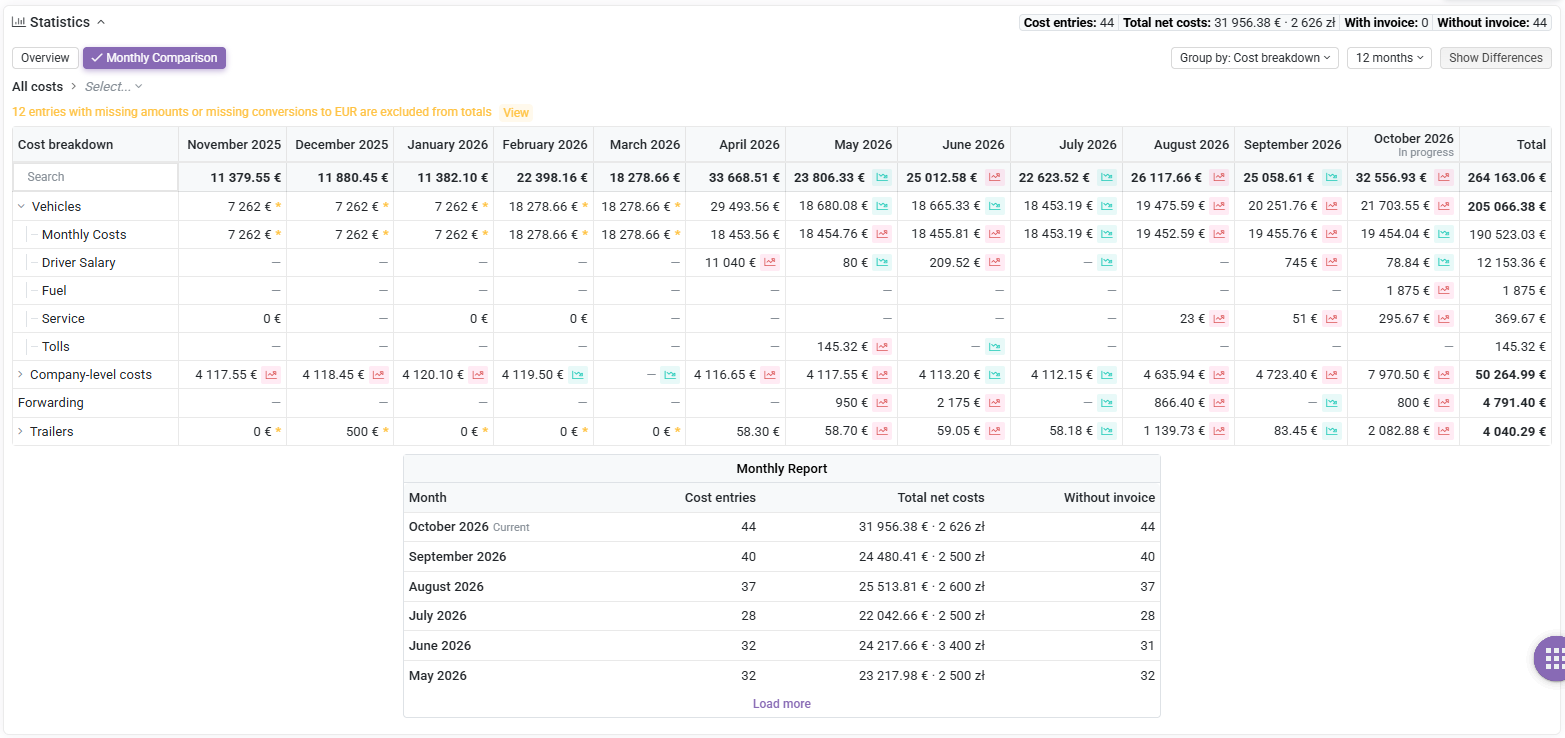 |
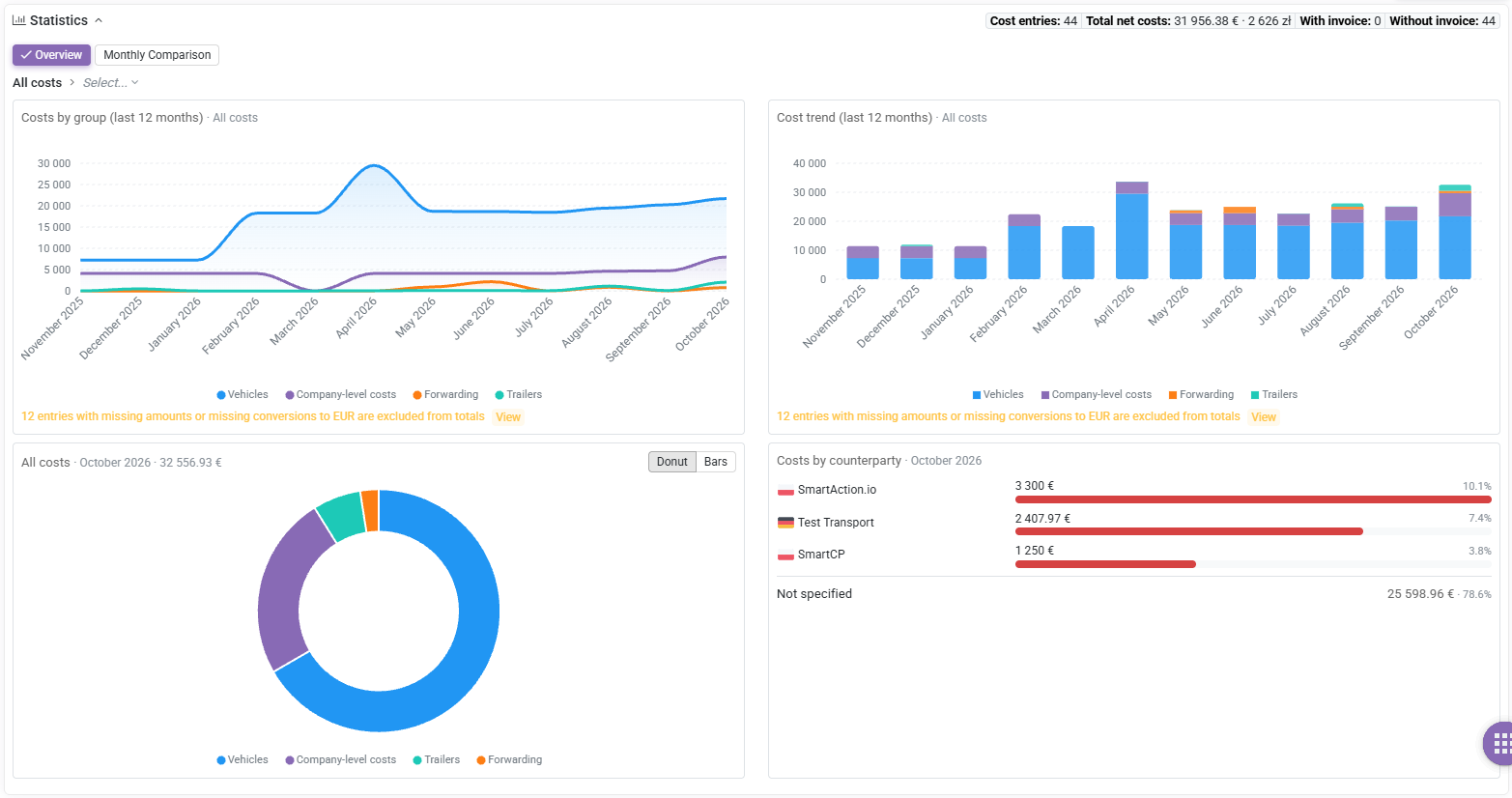
The expanded Statistics section helps you move from individual records to a clearer picture of spending. Use the charts in Overview to explore the distribution of costs, or open Monthly Comparison to see how amounts change over time.
- Compare vehicle, trailer, forwarding, and company-level costs.
- Review costs by category or counterparty.
- Explore a particular vehicle or trailer in more detail.
- Open the entries behind a figure to understand what contributed to it.
For example, if a vehicle’s costs rise from one month to the next, you can explore its cost breakdown and check whether the change comes from fuel, services, or another category. You can then review the relevant entries instead of working from the total alone.
The Monthly Report provides a compact view of entry counts and totals across months. If information needed for a total is missing, a notice lets you open the affected entries and check what needs attention.
Whether you are recording a new cost, checking invoice coverage, or reviewing monthly results, the updated Costs tab gives your team more ways to organize the information and understand the figures behind it.
If you have any questions or need assistance, please contact our support team at support@smartcp.org.
Best regards,
SmartCP Team