
Dear Customers,
We have prepared a new update related to Dispo-Plan.
To begin with, Dispo-Plan is now a module.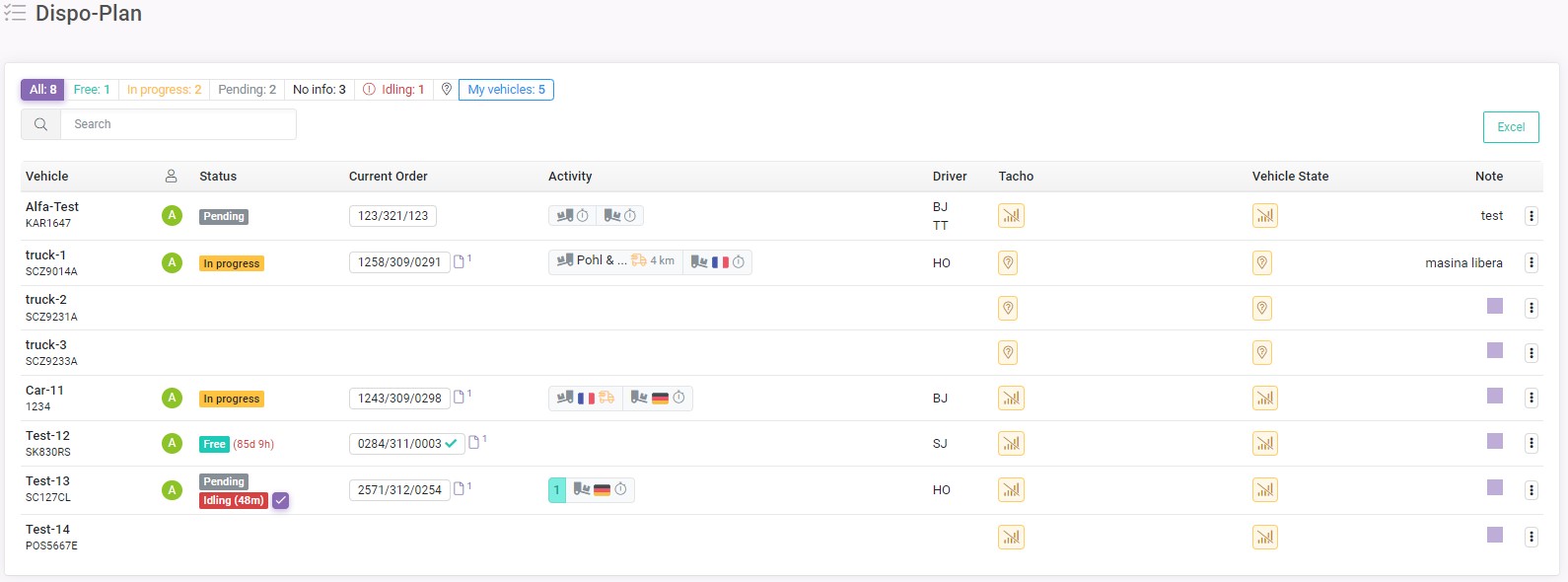 Since Dispo-Plan is growing in terms of functionality and its future development is planned, we decided to remove it from the Fleet module and make it as a separate module.
Next - updates.
In the main list for each vehicle added vehicle options on the right side.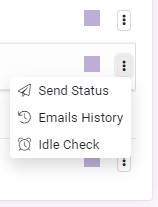
Quick notifications to your customers about the status of the vehicle
We used the wording "quick" for a reason.
Time is the most precious resource, both in regular life and in business. However, in business, time is money.
Every time you need to notify the customer about the progress of the order, you have to manually enter the email message, copy and paste the data and so on, up to the point of simply going to your email to write a message. All these actions take a lot of time, which is not very good.
That's why we have developed a functionality that allows you to send emails to your customers about vehicle status directly from SmartCP, and not just to send, but to do it literally in 3 clicks, which take only a few seconds of time.
How does it work?
All you need to do is to prepare email templates once.
Then in the future, when you need to notify the customer, just select the prepared template and click Send, that's all. "Quick" notifications.
To send vehicle status to the customer, open the vehicle options on the right side and select Send Status.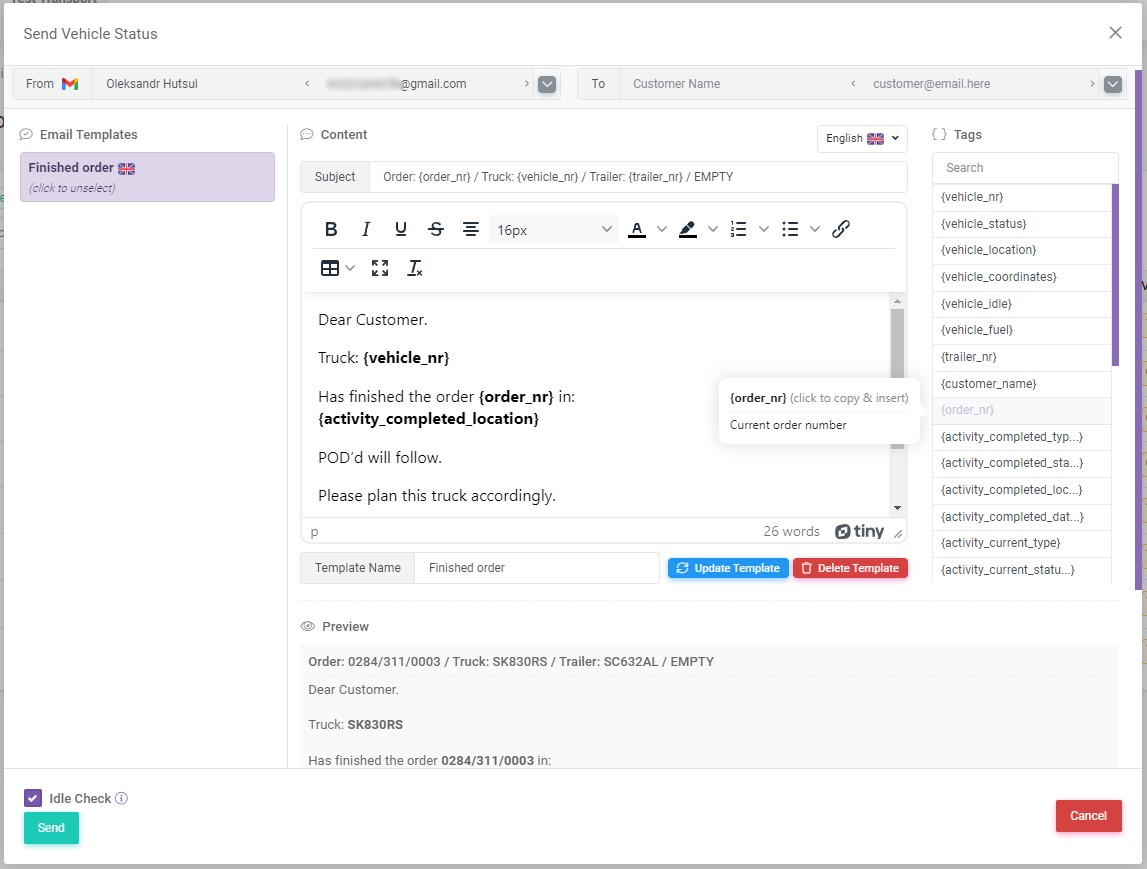
At the top, you need to select the address from and to which you want to send the email.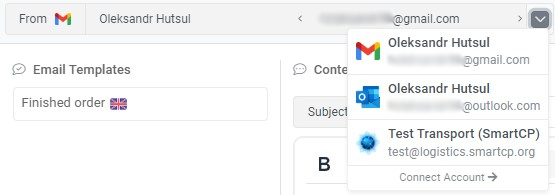
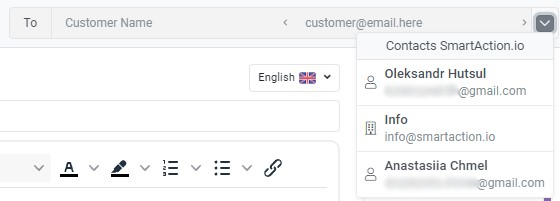
You can connect your Gmail, Outlook or Microsoft365 email account in your SmartCP profile, otherwise you will only be able to send emails on behalf of SmartCP, where you will need to specify your reply email.
To connect your mail account, on the top right, click on your avatar and select Profile. In the Connected Accounts section, select which account you want to connect and follow the instructions.
The system will automatically load contacts of the customer specified in the current order, you only need to select the appropriate contact from the list to whom the email will be sent.
To create an email template, use the prepared tags (on the right side), which imply the relevant data (for example: vehicle number, order number, status and others).
Paste the tags in the appropriate places in the email content, and below in the Preview section you will see the conversion of the tags into real data and in what form the email will be sent to the customer.
Once the email template is ready, give it a name and save it. The template will appear in the list of templates, from which you will be able to generate emails in the future and send them to customers in 1 click.
The system will also save the history of sent emails for 30 days. To view the history, open the vehicle options and select Email History.
Vehicles idle control
Time, once again. The sooner you detect idling, the sooner you solve the problem, respectively the vehicle will continue to do its job and generate income.
This is a convenient tool for controlling idle time and timely response. It is very easy to start the control process: open vehicle options and select Idle Check.
The system will remember the current vehicle state and check it for further activity.
In case the vehicle does not perform any activity within the next 45 minutes after the idle check starts, the system will warn you that the vehicle is idle.
If idling is detected:
- an additional idle filter will appear at the top of the filter list, clicking on it will open a list with all vehicles that are idle and information about the idle time

- the idle status will appear next to the vehicle status along with the idle time.

When the idle problem is solved, just click on the Resolved button to reset the idle status for the vehicle.
Also, when sending the vehicle status, you can specify that the system starts checking for idle from the moment of sending the email.
If you have any questions or require further clarification, please feel free to reach out to us at support@smartcp.org.
Best regards,
SmartCP