
Hello, SmartCP users,
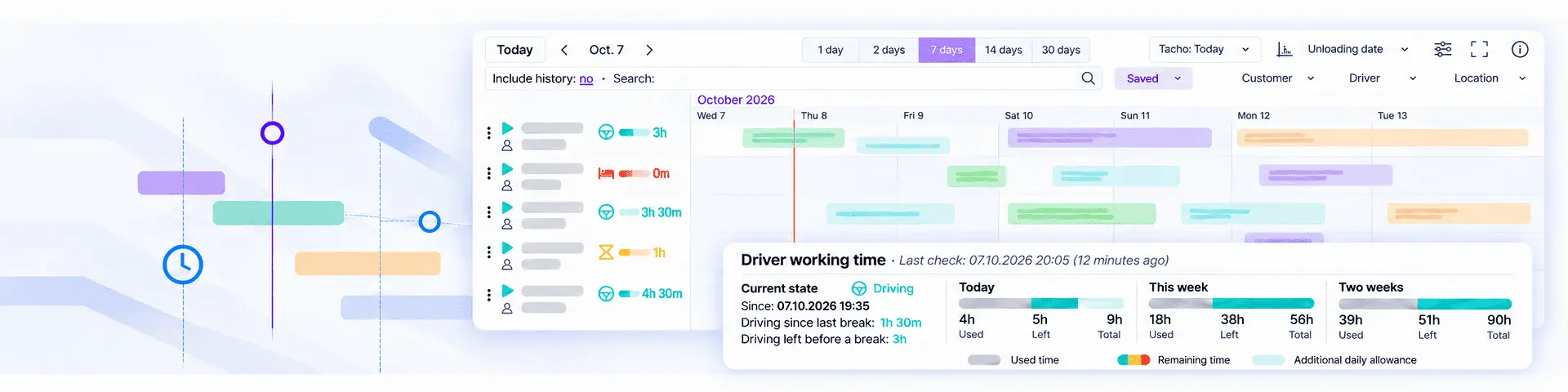
We’re pleased to introduce Drivers Tacho, bringing tachograph information and future planned weekly rests into Dispo-Plan. Your team can now review reported driving-time availability alongside drivers and vehicles when planning the next transport assignment.
The functionality requires a supported telematics integration. The information shown depends on the data supplied through that integration and the vehicle’s telematics connection.
See driving-time availability beside each driver
Drivers with tachograph readings now have an activity icon, progress bar and remaining-time indicator beside their details in Dispo-Plan. This gives you a compact view of their reported availability while you work on the transport schedule.
Use the Tacho dropdown above the planner to switch between Today, This week and Two weeks. The button appears when tachograph data is available.
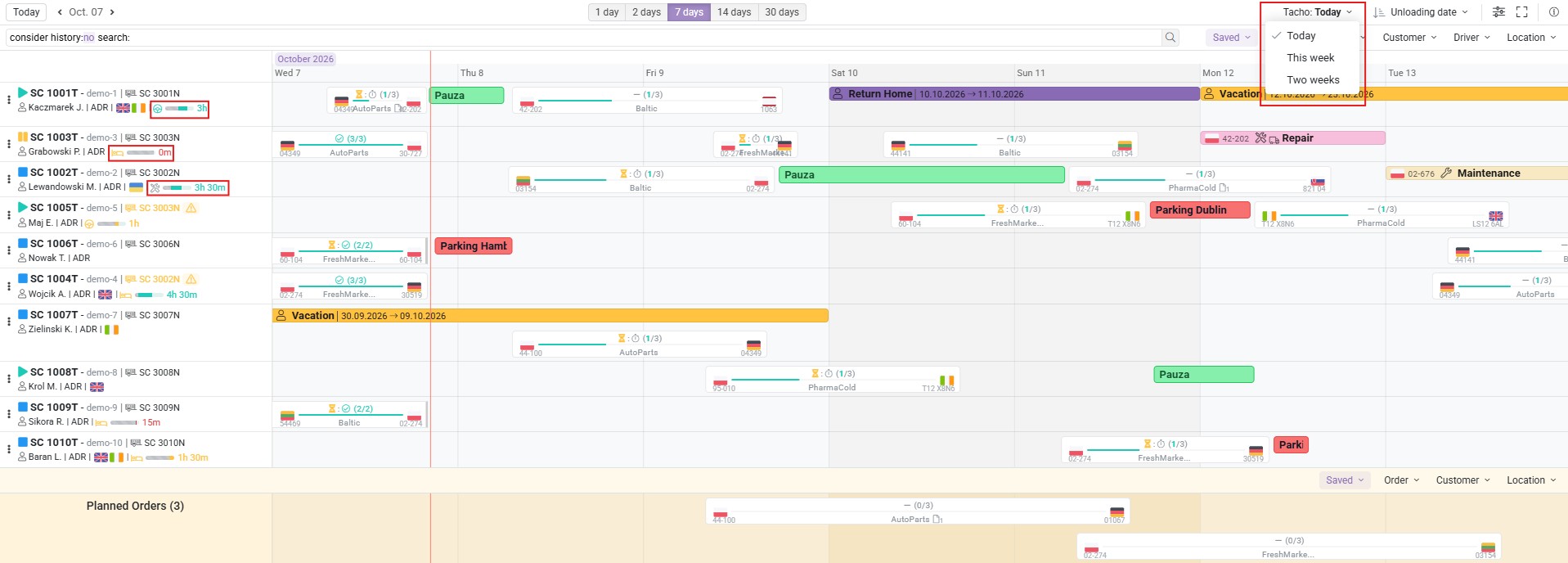
The striped grey section represents used time. The remaining-time section changes between green, amber and red as the available allowance decreases. In the Today view, a lighter section distinguishes additional daily allowance from the driving time available before the next reported limit is reached.
For example, a driver may have 4h 33m of daily allowance remaining but only 4h 10m before a break is due. The inline Today indicator shows the more restrictive 4h 10m, so the full daily allowance is not mistaken for uninterrupted driving time.
Explore the details behind the progress bar
Hover over a driver’s progress bar to open Driver working time. The popover brings together:
- Current State, including the reported activity and when it began.
- Used, remaining and total driving time for today, this week and two weeks.
- Driving left before a break and the next required daily and weekly rest times.
- Reported reduced daily rests and extended driving days.
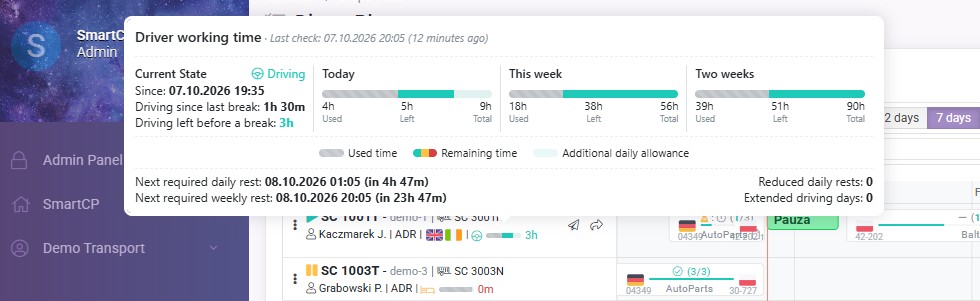
In this example, 5h remains in the daily allowance, but a break is due after 3h of further driving according to the reading.
Rest deadlines include a readable countdown, such as “in 5h 13m”. Missing values are shown as a dash. Rest remaining and Driving since last break appear when they are relevant to the current state and supplied by the integration.
Last check shows the telematics measurement time and how long ago it was recorded. Older readings carry an Outdated measurement warning. Driving-time counters reflect that measurement; they are not a continuously recalculated live countdown.
Connect readings to the correct driver
SmartCP attempts to identify telematics drivers through a unique driver-card match or, where suitable driver-directory data is available, a unique full-name match.
When a confirmed match is unavailable, a reading may appear beside an assigned driver as an assumption. Open Link driver using the link button beside the indicator to see the explanation and telematics driver card, then search for and select the correct driver.
The confirmed link connects the telematics identity to your driver record without changing vehicle assignments. It can continue identifying the same driver when that card appears in another vehicle.
Bring future weekly rests into your plan
Users with permission to modify Dispo-Plan can open the configuration cog above the planner and select Drivers Tacho. Enable Automatically insert pauses into Planner to let SmartCP add and update future planned weekly rests using telematics data.
These activities represent planned weekly rests, rather than confirmation that a rest has taken place. They are processed during scheduled rest synchronization, giving your team a view of upcoming rest periods on the timeline.
You can still adjust individual activities. Editing an automatic pause stops further automatic updates to it. Deleting it prevents its recreation for the same rest cycle.
Customize automatic pause activities
In Drivers Tacho, use Add to create a duration rule, choose an Assigned Custom Activity and optionally enter a Pause Title. The preview shows the title using the selected activity’s styling.
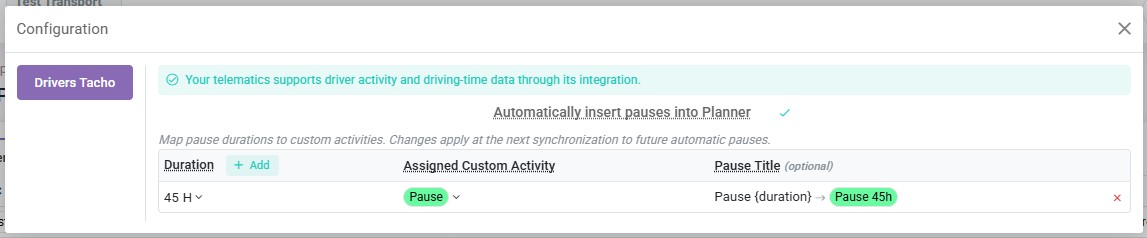
Rules accept durations in minutes or hours. Exact matches take priority; otherwise, SmartCP selects the nearest configured duration within a ±2-hour margin. If two rules are equally close, the default presentation is used. The actual pause length remains unchanged.
For example, a rule for 45 hours can apply to a reported rest lasting 44h 54m. Enter Pause {duration} as the title to display “Pause 44h 54m”, using the actual duration rather than the rule’s duration.
You can also use a fixed title without a duration. Leaving the title blank uses the assigned activity’s title or the default pause title. Unsupported tags, such as {45h}, are flagged as you type; {duration} is the supported placeholder.
Configuration changes apply to future automatic pauses at the next synchronization.
If you have any questions or need assistance, please contact our support team at support@smartcp.org.
Best regards,
SmartCP Team